NeoFpsInputManager ScriptableObject
Overview
The NeoFpsInputManager scriptable object handles the
Inspector
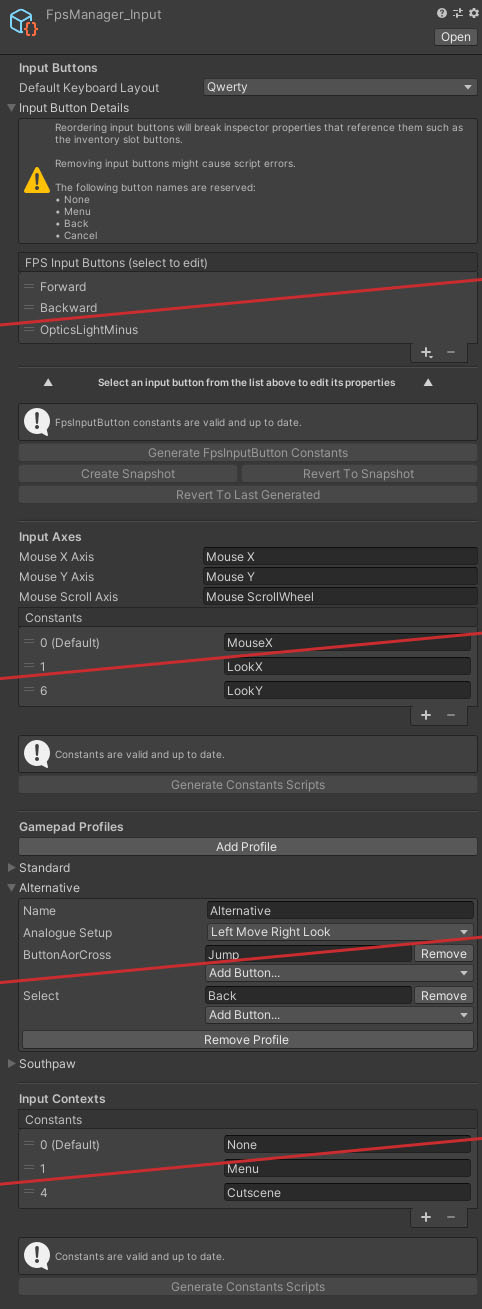
Properties
The NeoFpsInputManager inspector is split into multiple sections:
Input Buttons
The input buttons section defines the button or key style controls for the game, as well as their default key bindings.
| Name | Type | Description |
|---|---|---|
| Default Keyboard Layout | Dropdown | The keyboard layout that the buttons below are set up for (the system converts to qwerty and then on to the required layout when resetting to defaults. Available options are: Qwerty, Azerty, Qwertz, Dvorak, Colemak. |
Each button has the following properties:
| Name | Type | Description |
|---|---|---|
| Name | String | The input button name, as it was referenced in code. |
| Display Name | String | The name as shown in the key binding game options. |
| Category | Dropdown | The category of the button, used to organise the buttons in the key binding game options. |
| Context | Dropdown | The context is used to define when key bindings can be shared by multiple input buttons. An example is weapons that can be aimed, vs weapons that have a secondary function. |
| Default Keys | Dropdown(s) | The primary and secondary key bindings for the input button. These will be overriden by the player's key binding settings. |
Changing any of the buttons in the array or adding / removing constants requires the script to be regenerated. There are also a number of predefined buttos that will also be added for use in menus (None, Menu, Back and Cancel).
The Generate FpsInputButton Constants button will generate the button constants script. Revert To Last Generated will undo any changes to the buttons to the values when the script was last generated. Create Snapshot will store the current button setup, allowing you to revert back to this state using the Revert To Snapshot button, The snapshot will be reset when the script is generated.
Input Axes
The input axes are used to track analogue and variable axes in input handlers. The input axes are a generated constants script. Changing any of the constants in the array or adding / removing constants requires the script to be regenerated.
| Name | Type | Description |
|---|---|---|
| Mouse X Axis | String | The name of the mouse x axis in the Unity input settings. |
| Mouse Y Axis | String | The name of the mouse y axis in the Unity input settings. |
| Mouse Scroll Axis | String | The name of the mouse scroll wheel axis in the Unity input settings. |
| Constants | String Array | The names of the input axes. |
Gamepad Profiles
Each gamepad profile under this section can be expanded to map its controls. The Name property is the profile name as shown in the game's gamepad options. The Analogue Setup property defines what each analogue stick on the gamepad controls. The rest of the properties are mappings for each of the gamepad buttons based on an XBox or PS4 style controller (2 analogues, triggers, d-pad and buttons). Gamepads are detected when connected, and the primary gamepad will be mapped to the profile for player character control. Each gamepad button can be mapped to multiple inputs. The Add Button... dropdown will show all of the valid inputs that you can apply. If the gamepad button already has an input then this will only show inputs that are able to clash with this one.
Input Contexts
Input contexts are used by input handlers to define which handler should process input and which should be ignored at any one time. Pushing a context to the stack will only allow input handlers with that context to process input. The input context is a generated constants script. Changing any of the constants in the array or adding / removing constants requires the script to be regenerated.
| Name | Type | Description |
|---|---|---|
| Constants | String Array | The names of the input contexts. |