Motion Graph Parameters And Data
Overview
The Motion Graph allows you to add parameter and data entries to the graph.
Parameters are accessible from elements inside the graph and also externally via the get and set parameters outlined below. This enables various systems and your own scripts to feed data to the motion graph that it can use to drive and influence the character movement.
Motion data are used inside the graph, but cannot be changed directly from outside. These values are used for things like speeds that are considered more constant than parameters. You can, however, create override assets which can be attached to the graph at runtime and then
Parameters
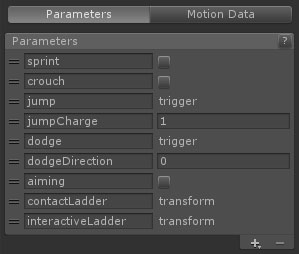
Parameters are accessible through the motion graph editor by clicking the Parameters tab in the motion graph editor side-bar.
To add a new parameter click the + button on the list and select the type from the dropdown.
To remove a parameter select the relevant entry and click the - button on the list.
To edit a parameter use the fields in the relevant entry. The text field on the left is the desired name for the parameter. This should be unique to this parameter or only the first entry in the list with that name will be accessible. On the right side of the name is the default starting value. This is the value the parameter will have on initialisation and whenever it is reset.
The following parameter types are available:
| Name | Description |
|---|---|
| Integer | The integer parameter is a decimal value. |
| Float | The float parameter is a floating point value. |
| Switch | The switch parameter is a boolean value. It can be toggled and blocked. |
| Trigger | The trigger parameter is a one off trigger. It will be reset when it is consumed in the graph. It can also be blocked. |
| Transform | The transform parameter is a reference to a Transform component. |
| Vector | The vector parameter is a Vector3 value. |
| Event | The event parameter is a C# event that can be invoked from inside the graph and subscribed to from outside. |
For parameters that can be blocked, they will always return their default value as long as there are blockers. Use SwitchParameter.AddBlocker() to add a blocker to a switch parameter, and SwitchParameter.RemoveBlocker() to remove a blocker. The parameter will be blocked when the number of blockers is not 0. Be careful to remove any blockers you add when no longer needed.

Parameters are referenced from within the graph using dropdowns. The user can choose to select None, Create New (another way to add a new parameter to the graph), or any of the relevant parameters attached to the graph.
Events
The event parameter is a useful parameter for interacting with external code from within a motion graph. They can be subscribed and unsubscribed by using the EventParameter.AddListener (UnityAction listener) and EventParameter.RemoveListener (UnityAction listener) methods.
You can invoke an event parameter from your own code using EventParameter.Invoke () or using a InvokeEventBehaviour motion graph behaviour.
Motion Data
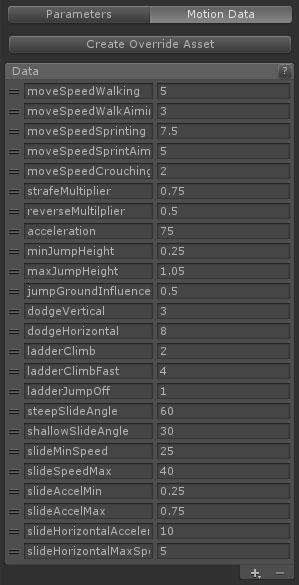
Motion data are accessible through the motion graph editor by clicking the Motion Data tab in the motion graph editor side-bar.
To add a new data entry click the + button on the list and select the type from the dropdown.
To remove a data entry select the relevant entry and click the - button on the list.
The Create Override Asset button will create a new MotionGraphDataOverrideAsset in the same folder as the edited motion graph and with the same name.

Various properties on graph states or behaviours can be assigned a motion data value using a dropdown as above. The user can choose to select None, Create New (another way to add a new motion data entry to the graph), or any of the relevant motion data entries attached to the graph. If the dropdown is set to None then a separate Value field will be visible below. In simple cases you can use this value directly, but setting the property to a motion data entry allows you to share a single data entry across multiple properties, and also to override from an asset later.
Accessing Parameters
Parameters are accessed from the motion graph root object. They can be set directly with the following methods:
int MotionGraphRoot.GetInt (string parameterName);
int MotionGraphRoot.GetInt (int hash);
void MotionGraphRoot.SetInt (string parameterName, int value);
void MotionGraphRoot.SetInt (int hash, int value);

float MotionGraphRoot.GetFloat (string parameterName);
float MotionGraphRoot.GetFloat (int hash);
void MotionGraphRoot.SetFloat (string parameterName, float value);
void MotionGraphRoot.SetFloat (int hash, float value);

bool MotionGraphRoot.GetSwitch (string parameterName);
bool MotionGraphRoot.GetSwitch (int hash);
void MotionGraphRoot.SetSwitch (string parameterName, bool value);
void MotionGraphRoot.SetSwitch (int hash, bool value);

Transform MotionGraphRoot.GetTransform (string parameterName);
Transform MotionGraphRoot.GetTransform (int hash);
void MotionGraphRoot.SetTransform (string parameterName, Transform value);
void MotionGraphRoot.SetTransform (int hash, Transform value);

void MotionGraphRoot.SetTrigger (string parameterName);
void MotionGraphRoot.SetTrigger (int hash);

void MotionGraphRoot.AddEventListener (string parameterName, UnityAction listener);
void MotionGraphRoot.AddEventListener (int hash, UnityAction listener);
void MotionGraphRoot.RemoveEventListener (string parameterName, UnityAction listener);
void MotionGraphRoot.RemoveEventListener (int hash, UnityAction listener);
Passing a string parameter for parameterName is more convenient, but performance can be increased by storing a hash of the string and using that instead. You can generate a hash using Unity's Animator.StringToHash (string input) method. This is similar to the way you would access a parameter in an animator controller graph.
If you plan to access a parameter multiple times then the most efficient way to do so is to store a reference to the parameter itself. You can do this using the following methods:
IntParameter MotionGraphRoot.GetIntParameter (string parameterName);
IntParameter MotionGraphRoot.GetIntParameter (int hash);

FloatParameter MotionGraphRoot.GetFloatParameter (string parameterName);
FloatParameter MotionGraphRoot.GetFloatParameter (int hash);

SwitchParameter MotionGraphRoot.GetSwitchParameter (string parameterName);
SwitchParameter MotionGraphRoot.GetSwitchParameter (int hash);

TransformParameter MotionGraphRoot.GetTransformParameter (string parameterName);
TransformParameter MotionGraphRoot.GetTransformParameter (int hash);

TriggerParameter MotionGraphRoot.GetTriggerParameter (string parameterName);
TriggerParameter MotionGraphRoot.GetTriggerParameter (int hash);

VectorParameter MotionGraphRoot.GetVectorParameter (string parameterName);
VectorParameter MotionGraphRoot.GetVectorParameter (int hash);

EventParameter MotionGraphRoot.GetEventParameter (string parameterName);
EventParameter MotionGraphRoot.GetEventParameter (int hash);
This is also the way that the included motion graph elements reference parameters. If you plan to expand on the motion graph with your own custom elements then there are a number of GUI helpers available that simplify adding custom parameter and data selectors to inspectors. For more information see Extending the Motion Graph.