The Motion Graph Editor
Overview
The motion graph editor is a set of tools for creating and editing NeoFPS motion graphs. It contains a viewport for navigating and visualising the graph, along with an inspector for changing the properties of the graph and its components.
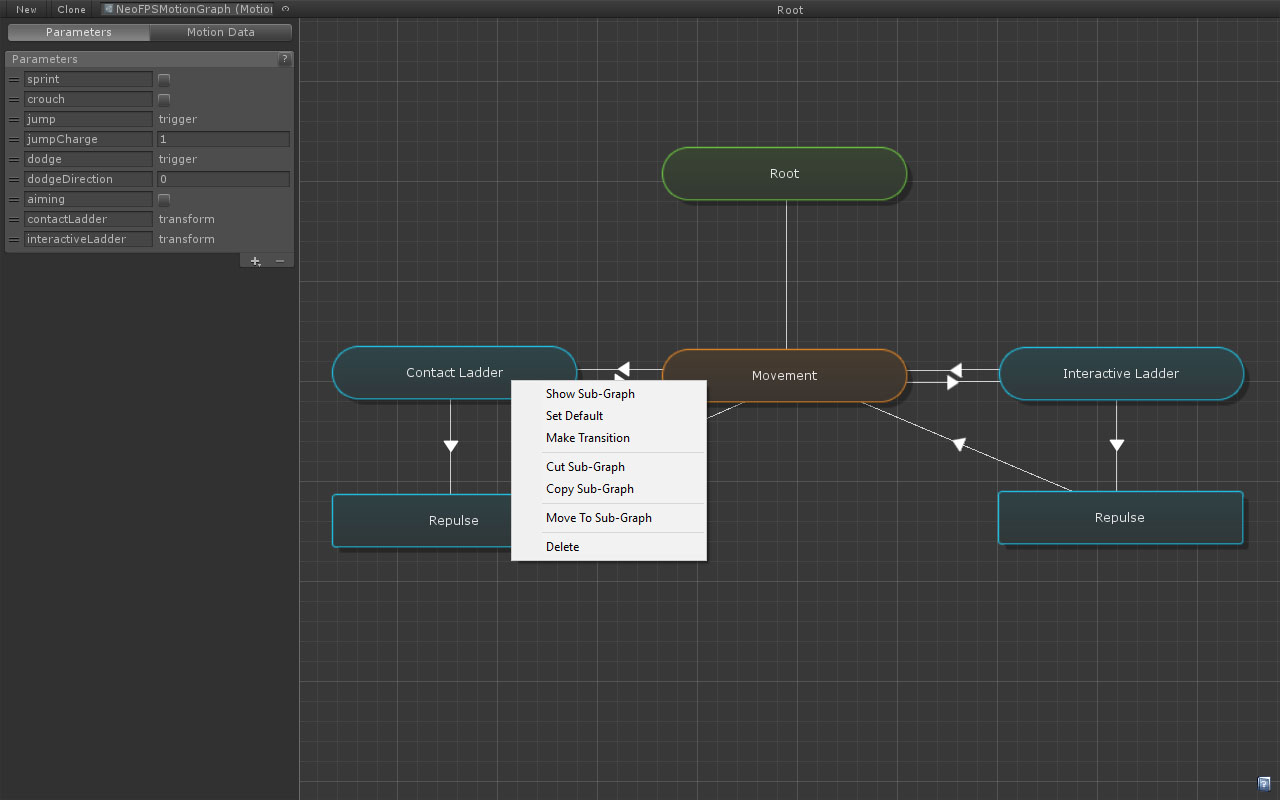
You can access the motion graph editor through the Unity menu: Window/NeoFPS/Motion Graph Editor. You can also access the editor from the Show Motion Graph Editor button that appears in the inspector for a motion graph asset.
You can create a new motion graph from the motion graph editor by clicking the New button in the top bar. The new asset will be placed in the project root folder. You can also right-click in the project and create a new motion graph through the create menu using the following command: Create/NeoFPS/Motion Graph. Selecting a motion graph asset with the motion graph editor open will update the editor to show the contents of the selected graph.
Motion Graph Editor UI
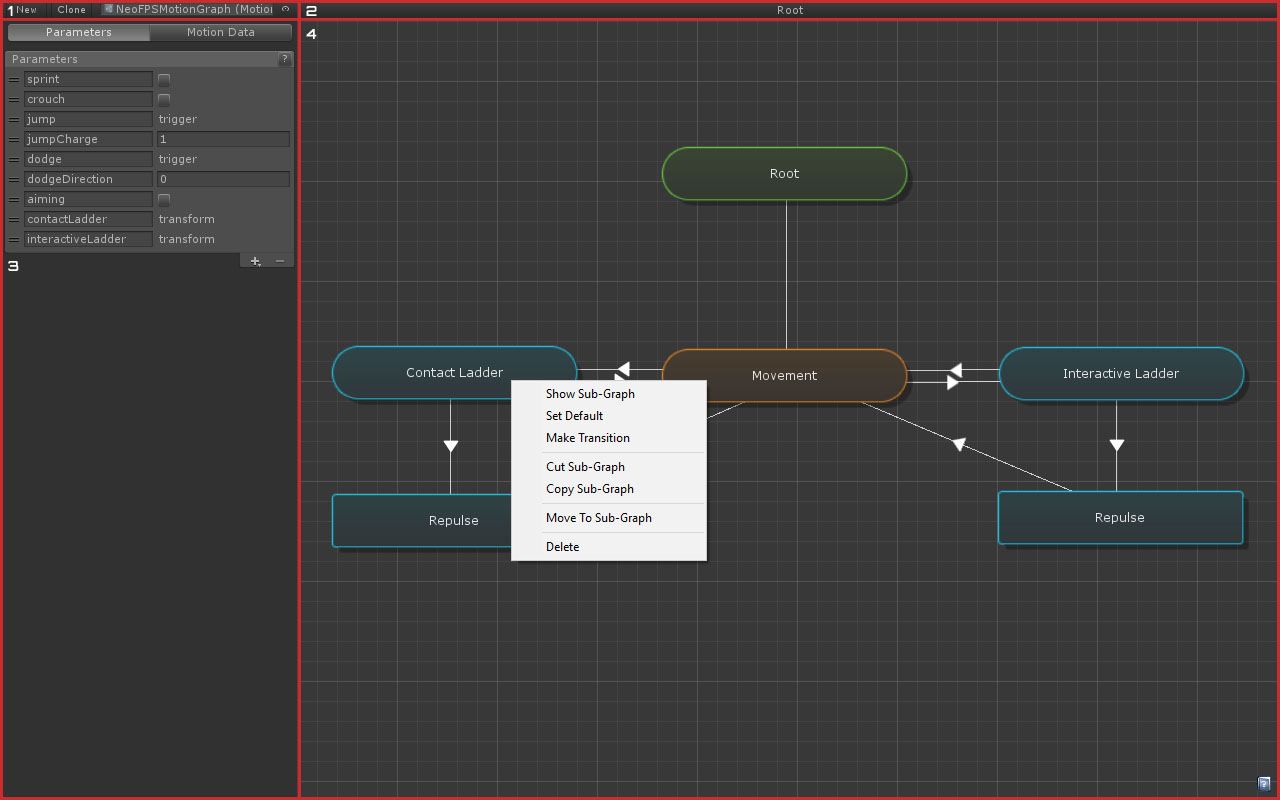
The following is a breakdown of what you will see when you open the editor:
- The asset controls allow you to create and save graph assets as well as select the graph currently being edited.
- The breadcrumb at the top shows the current sub-graph of the hierarchy that is currently visible in the viewport.
- The side bar allows you to add and modify parameters and motion data on the graph.
- The viewport shows the layout of the graph.
Motion Graph Viewport
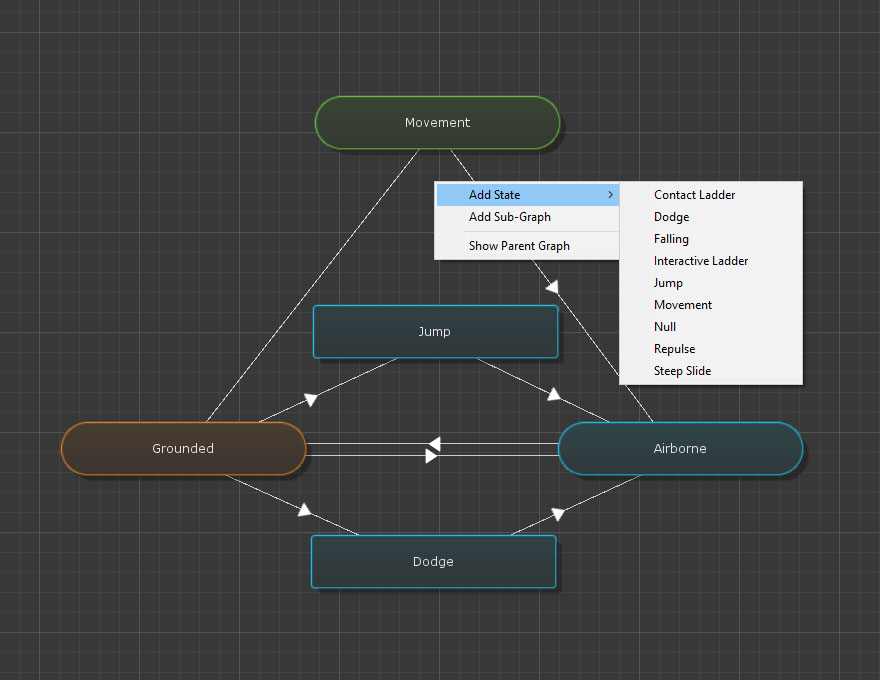
The motion graph viewport gives a visual representation of the graph, allowing you to navigate the connections, add elements and select and modify existing elements.
To move the viewport hold the middle mouse button and drag the cursor. Alternatively, you can hold the Left Alt key and click the left mouse button on an empty area of the viewport and then hold and drag the mouse button to move.
To open a context menu you can right click anywhere in the viewport. This menu will contain different entries depending on what you clicked and covers actions such as navigating the graph, cut/copy/paste/deleting elements and creating transitions between elements.
Inside the viewport, the visible elements are as follows:
- The rectangular boxes are motion graph states. These handle the movement of the character and the motion controller depending on the motion controller's current state. Left-click a state to edit its properties in the editor inspector panel.
- The angled boxes are sub-graphs. These contain their own graph layout and can be transitioned into and out of as if they were a state. Left-click a sub-graph to edit its properties in the inspector panel. Double-click a sub-graph to replace the viewport contents with that sub-graph's contents.
- The green angled box is the sub-graph that is currently being shown in the viewport. You can double-click this element or use the context menus to show its parent graph in the viewport.
- The lines with arrows between different elements are the motion graph connections. These define which states and sub-graphs connect to each other and what conditions must be met to transition between them. Left-click the arrow on a connection to edit its properties in the inspector panel.
You can also group select states and sub-graphs in order to perform group operations. To drag-select elements, Left-click in an empty area of the viewport and, holding the mouse button down, drag across the desired states and sub-graphs. Releasing the mouse button will select the states and sub-graphs within the area. Connections can not be group selected, but any group operations will affect the connections into and out of the modified elements. You can also Control-Left-Click or Command-Left-Click on an element to add it to the group, or Alt-Left-Click to remove it from the group.
Any selected states or sub-graphs will be highlighted in the viewport.
Inspecting Motion Graph Elements
Selecting an element in the viewport will show it in the Unity editor inspector.
Connectables (States an Sub-graphs)
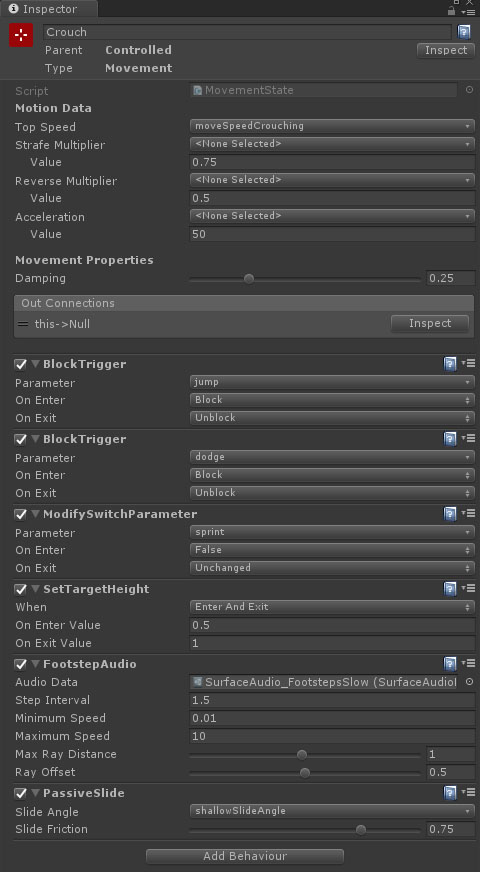
The connectable inspector is used for both states and sub-graph elements due to the similarities between them.
The header of the inspector allows you to change the element's name, see (and inspect) its parent sub-graph, and in the case of states, see its type.
Straight after the header are the connectable properties. States can have any number of properties, and in some cases might have complex editor logic such as you would expect from a MonoBehaviour or ScriptableObject.
After the connectable properties is an Out Connections array that shows all of the connections out of the inspected element. Each entry in the array shows the destination, along with an Inspect button. Clicking this will select the connection element and show its properties in the inspector for editing.
Both states and sub-graphs can also have a number of behaviours attached to them. These are listed after the out connections. Each behaviour has a foldout title bar that can be used to show or hide its properties. They also have a link to the relevant manual reference for that behaviour, and a dropdown context menu with options for changing order, copy/paste and removal. You can add behaviours to the state by clicking the Add Behaviour dropdown button and selecting a behaviour. For more information on behaviours, see Motion Graph Behaviours.
Connections
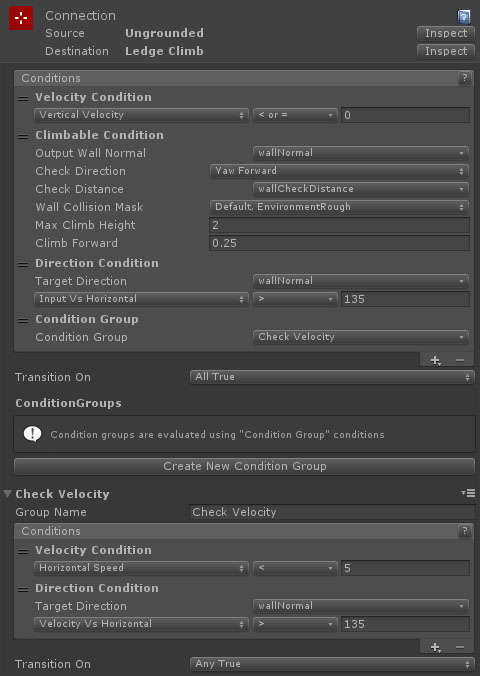
The header of the connection inspector shows the source and destination elements and allows you to quickly inspect either one.
The Conditions array shows all the conditions that decide if the connection is valid. For more information on conditions, see Motion Graph Conditions. You can add a new condition by clicking the + button at the bottom of the array and selecting the relevant condition from the dropdown.
The Transition On dropdown species if all of the conditions must be met for control to be transferred, or if any one of the conditions must be met.
Parameters and Data
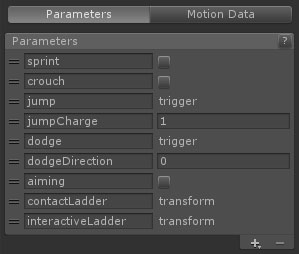
The side-bar of the editor has 2 tabs that show all of the parameters attached to the graph, and all of the motion data attached to the graph. Parameters and data can be referenced from any state, behaviour or condition in the graph. Scripts can also get a reference to any of the attached parameters from outside the graph, creating a flexible system for communication back and forth between the graph and other systems.
For more information, see Motion Graph Parameters And Data.