Troubleshooting The Save System
Overview
Serializing and deserializing game state is a complex topic, and it can be tricky to work out why something isn't being saved the way you would expect it to. The NeoFPS save system tries to give the visual feedback in the inspector to help diagnose issues, along with a tool called the NeoSave File Inspector, which you can use to check data that has been saved to a file.
Troubleshooting NeoSerializedGameObjects
The following is an example of the serialization info shown in the inspector for a NeoSerializedGameObject:

While this is an example of an object that will not be correctly saved by the save system:

If an object says it will not be saved then that is generally down to one of four reasons:
- The scene does not have a valid SceneSaveInfo.
- The object's heirarchy does not have a NeoSerializedGameObject at its root.
- The object or one of its parents is blocked from saving by NeoSerializedGameObject child object filters higher up the hierarchy.
- The object was instantiated at runtime, but using default Unity instantiation and not via the NeoFPS save system.
NeoSave File Inspector
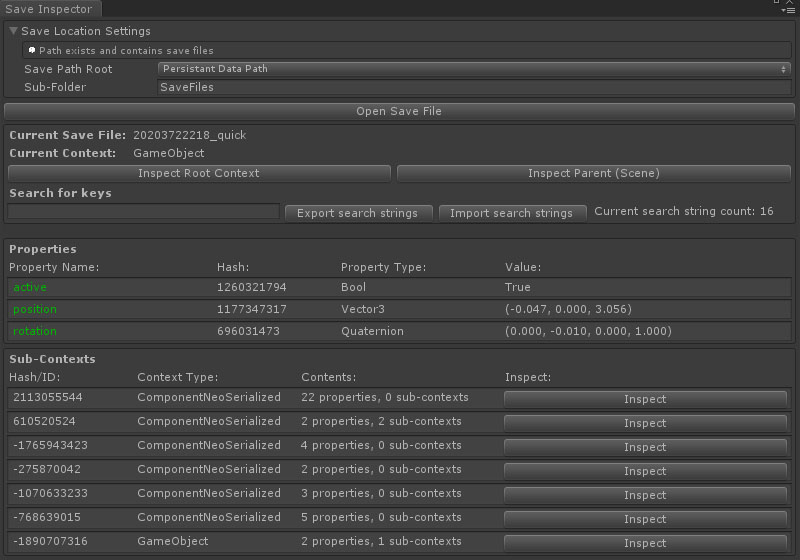
The NeoSave File Inspector can be used to open save files and inspect their contents. It can be found in the menus at Tools/NeoFPS/NeoSave File Inspector, or by clicking the Save Game Inspector button from within the SaveGameManager settings.
Save Location Settings

At the top of the editor is a foldout section for exploring to the project's save files. This matches the SaveGameManager settings and will display an info box that shows if the folder exists and contains save files.
Searching For Strings

NeoFPS save files are designed to use a low footprint and fast format, and not to be human readable. Data is not organised using property names, but hashes instead. This can make it tricky to understand what values in the save file inspector correspond to what properties in a component or object. To aid in this, you can register property names with the inspector, and when a hash matches one of those property names, then the name will be displayed in green besides the hash value.
You can add new property names via the Search For Keys text field. This will add the name and its hash to the inspector. The inspector automatically registers a number of common property names that are used in the base NeoSerializedGameObject and save file metadata. You can also export and import the property names via the Export Search Strings and Import Search Strings buttons. This is useful if you are making frequent use of the save file inspector and have specific classes you want to focus on.
Navigating The File

Near the top of the inspector is a section which displays information on your current location in the save file, and allows you to navigate up the save hierarchy.
NeoFPS save files group data into contexts, These context are things like Scene, MetaData, GameObject and ComponentNeoSerialized or ComponentNeoFormatted. These contexts are stored in a tree hierarchy, similar to the scene hierarchy. At the root of the save file is always the Root context. At any time while inspecting the save file contents, you can return to the save file root by using the Inspect Root Context button. You can also move back up the hierarchy towards the root one node at a time using the Inspect Parent button. The brackets next to this display the context type of the parent.
The Current Context readout tells you what context you are currently inspecting.

The Properties section displays the values that are currently saved for the inspected context and contains the following info:
- Property Name displays the name of the property if a property name has been registered with the inspector that matches the property's hash (see above).
- Hash is the hashed property name that was used to save the data.
- Property Type is the type of the value (it will also say if it is an array).
- Value is the saved value. In the case of arrays, you can expand this section to see the individual values (large arrays will show the first 50 values, followed by a "..." to signify there is more data in the file).
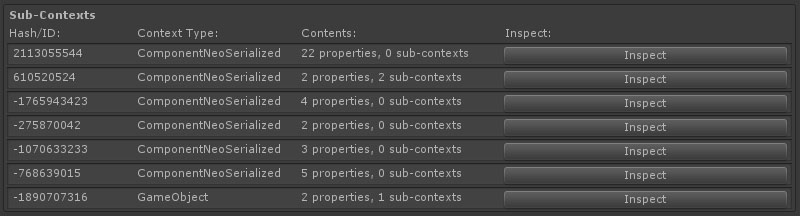
The Sub-Contexts section shows the child contexts that the current context contains and shows the following info:
- Hash/ID is the ID value that was used to identify the context when saved. This could be a generated ID, a hashed name, or a sequential number based on the context type. The only rule is that it is unique within the current parent context.
- Context Type is the type of the context.
- Contents shows the number of properties and child contexts for this context.
- The Inspect button will change the currently inspected context to this one. You can reach the previous context using the Inspect Parent button.
Loading vs Initialisation Order
Another area where it can be complicated to enforce correct behaviour is in the execution order of loading objects from save data vs initialising them using the standard Unity Awake() and Start() methods.
Unfortunately Unity only provides limited functionality to detect when a scene has been loaded, and events are only fired once Unity has initialised all objects with Awake(). It is possible to halt async scene loads once all objects have been created, but the scene state is not sufficent for searching for or instantiating objects.
The NeoFPS save system attempts to get around this by using Script Execution Order with the SceneSaveInfo behaviour to ensure that it is the first object to be awakened in the scene, which in turn triggers the loading from save data before the rest of the scene objects are awake. The reasoning behind this is that the save system can recreate the scene hierarchy and destroy any objects that require it before they are initialised. Runtime objects that are instantiated will call Awake() immediately, while scene objects will call Awake() once the hierarchy has been fully rebuilt.
If you find that your components are being loaded after they have already been initialised then check in the Script Execution Order settings that the top value is NeoSaveGames.SceneSaveInfo.
It is also a good idea to move any common initialisation logic out of Awake() and into a separate method that can be called from inside both Awake() and ReadProperties() with a check that it does not occur twice. For example:
public class ExampleBehaviour : MonoBehaviour, INeoSerializableComponent
{
	private bool m_Initialised = false;

	void Awake()
	{
		// Do not initialise if already loaded by save system
		if (!m_Initialised)
		{
			// Perform non-shared initialisation logic here

			Initialise();
		}
	}

	void Initialise()
	{
		// Perform shared initialisation logic here

		m_Initialised = true;
	}

	public void ReadProperties(INeoDeserializer reader, NeoSerializedGameObject nsgo)
	{
		if (!m_Initialised)
		{
			// Read the relevant data here

			Initialise();
		}
		else
			Debug.LogError("Reading propertes after component was initialised. Check script execution order of SceneSaveInfo.cs");
	}
}
See Also
[Inventory Examples][2]