ModularFirearm MonoBehaviour
Overview
The ModularFirearm behaviour manages all of the modules that make up a firearm.
Inspector
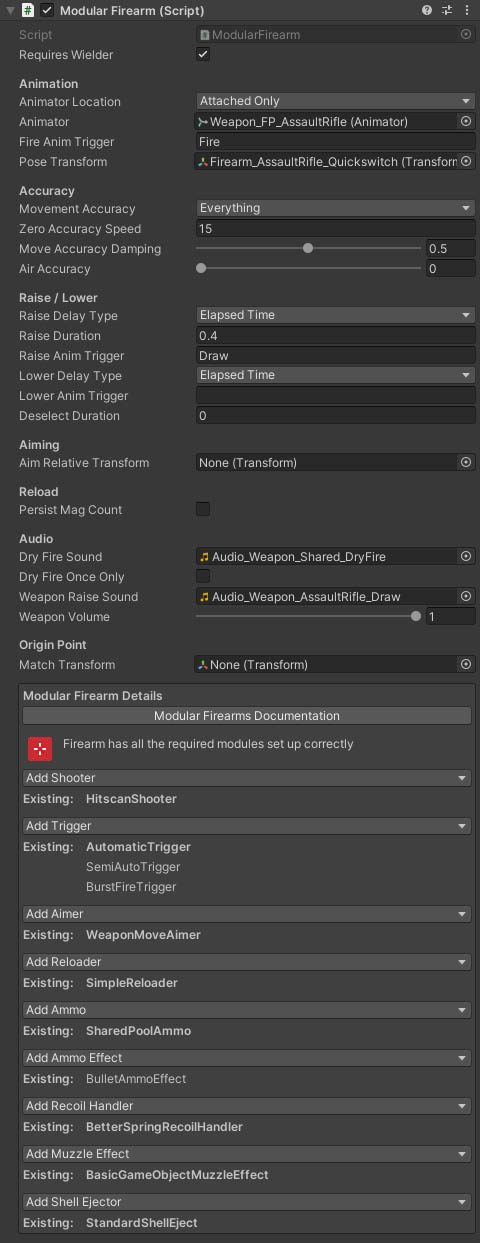
Properties
| Name | Type | Description |
|---|---|---|
| Animator Location | Dropdown | What animators should be exposed to the weapon components and modules. Options are None, AttachedOnly, AttachedAndCharacter, MultipleAttached, MultipleAttachedAndCharacter and CharacterOnly. |
| Animator | Animator | The weapon geometry animator (optional). |
| Pose Transform | Transform | The transform that should be offset for weapon poses. |
| Fire Anim Trigger | String | The AnimatorController trigger key for the fire animation (blank = no animation). |
| Movement Accuracy | Dropdown | Is accuracy modified by movement. Airborne applies an additional flat penalty for accuracy when not touching the ground. Options are None, Everything, Movement, Airborne. |
| Zero Accuracy Speed | Float | The speed above which your accuracy hits zero. |
| Move Accuracy Damping | Float | Smoothes changes in accuracy during sudden speed changes. |
| Air Accuracy | Float | A multiplier for move accuracy when airborne. |
| Raise Delay Type | Dropdown | The delay type for raising the weapon (you can use FirearmAnimEventsHandler to tie delays to animation). Options are None, Elapsed Time, External Trigger. |
| Raise Duration | Float | The duration in seconds for raising the weapon. |
| Raise Anim Trigger | String | The AnimatorController trigger key for the weapon raise animation (blank = no animation). |
| Lower Delay Type | Dropdown | The delay type for lowering the weapon (you can use FirearmAnimEventsHandler to tie delays to animation). Options are None, Elapsed Time, External Trigger. |
| Lower Anim Trigger | String | The AnimatorController trigger key for the weapon lower animation (blank = no animation). |
| Deselect Duration | Float | The time taken to lower the item on deselection. |
| Aim Relative Transform | Transform | The aim relative transform is the transform of the gun (mesh or bone) itself, which the optics are parented to. This allows a consistent offset to be calculated, even as the weapon is animated by keyframed or procedural spring animation. |
| Persist Mag Count | Boolean | When switching reloader modules, should the ammo in the magazine be transferred from one to the other? |
| Dry Fire Sound | AudioClip | The audio clip to play if attempting to fire while empty. |
| Dry Fire Once Only | Boolean | Should the dry fire only be played once until the weapon is reloaded. |
| Weapon Raise Sound | AudioClip | The audio clip to play when the weapon is drawn. |
| Weapon Volume | Slider | The volume of all weapon sounds (includes gunshots and reload - the muzzle effects and reloader modules have their own volume sliders that stack with this). |
Origin Point
The NeoFPS weapons assume that the camera is placed at the origin. For many assets or 3rd party weapons, the origin is at the character feet or hips and the camera is a child object of the weapon's hierarchy. To align the object to correctly work with NeoFPS you can drag the camera object of the weapon into the Match Transform field under the Origin Point heading. This will move everything below the spring object to match up.
Modular Firearm Details
The modular firearm details section assists in setting up a modular firearm. It displays the current state of the firearm along with the attached modules, and allows you to quickly add modules to the firearm.
Quick Setup
If the modular firearm object does not have any child objects, then the firearm inspector will show the quick-setup mode. This allows you to create a default firearm setup using a view model prefab from the project. This is only available if the object is placed in a scene. If it is accessed as a prefab in the project hierarchy, then these options will not appear because of issues with modifying prefab object heirarchies via scripts.

This is used to set up the firearm hierarchy and attach render geometry. It has the following properties:
| Name | Type | Description |
|---|---|---|
| Animator | Animator | The weapon geometry animator. If this is set then the inspector will exit quick setup an move to module management mode as below. Use this if your view model is not a child of the firearm (eg if the firearm is the secondary fire mode of another weapon). |
| Use Inventory | Dropdown | Which of the inventory implementations do you want the firearm to use. Choosing the Custom option does not add an inventory wieldable behaviour, meaning that you will need to add your own solution. |
| Use Standard Input | Boolean | Should the firearm use the standard NeoFPS input handler. Switch this off if you wan to add your own custom input handler. |
| Weapon Geometry | GameObject | This value is a prefab or model that you want to use to represent the first person weapon. If the object does not contain a mesh renderer or skinned mesh renderer in its hierarchy then it will cause an error. There is also a warning if the object has no animator in its hierarchy, though this is not compulsary. |
With a valid weapon geometry object selected, the Set Up Firearm button will be available. Pressing this will create a spring object set up with procedural animation behaviours for handling things like recoil and weapon bob, and then will copy the weapon geometry under this.
Module Management
If the firearm already has child objects then the details section will instead show the modules options:

To add a firearm module click the relevant dropdown button and select the desired module from the menu. If a module is required for a firearm to operate then the info section at the top of the modular firearm details will display an error if that module is not attached. The firearm can also have multiple modules of each type, though only one should be set to start active.
Each of the attached modules can also report back any errors to the firearm they are attached to, and broken modules will be displayed as red in this list.