Inventory
Overview
NeoFPS has its own inventory system that it uses for all of its weapons and items. The inventory is implemented as separate components to the itemas themselves so it should be easy to replace with an alternative system if desired.
The NeoFPS inventory system is implemented in 2 parts: inventory and quickslots.
Inventory

The inventory is a container of items. It manages item ownership and quantities, and invokes events to react to changes. All of the example inventories inherit from a single base class FpsInventoryBase. This base class handles both the inventory storage and the quick-slots. It also provides inspector properties for initialising the inventory's starting contents and the priority order for the slot items.
The demo implementations of the inventory are not fixed. The inventory is referenced externally via the IInventory interface, meaning that it can be swapped out with another implementation and the system as a whole will adapt.
Inventory items are objects that implement the IInventoryItem interface. The interface has properties for quantity and ownership, along with methods that are called when added or removed from an inventory. The example inventory items inherit from a single base class FpsInventoryItemBase which provides a standard implementation for the above properties and methods.
Quick Slots / Hotbar

The quick-slots system binds items to slots that can be mapped to inputs. In a simple, traditional FPS system that would mean each slot being mapped to a number key on the keyboard. It could also mean a slot for each direction on a game controller d-pad. You can change what inputs are used for each slot via the inventory input handler. For example, you could add an input for "quick melee" and use that to trigger a slot with a quick-use melee item on it.
All quick-Slot items implement the IQuickSlotItem interface. This has properties and methods for selection and for dropping.
NeoFPS comes with a number of example inventories that implement quick slots in different ways to model popular first person shooters. For more information see Inventory Examples.
Wieldables
Wieldables are weapons and items that are equipped and held in the hands and then triggered on command. An example is a gun, and all of the demo weapons are set up as wieldables.
To be equipped, your weapon prefabs need either an FpsInventoryWieldable or an FpsInventoryWieldableSwappable behaviour attached depending on the inventory type.
Quick-Use Items
Alongside equipping wieldable weapons, you can also create quick-use weapons and items. When the quick slot for these items is selected, the weapon is equipped and then immediately performs its action and then unequips again. This can mean a gun that draws, immediately fires and then is re-holstered. It can also mean quick throwing a grenade or swinging a melee weapon. You can also use this in combination with wieldable tools for actions like applying healing bandages.
There are a number of options for what to do with the previously equipped weapon when performing a quick action. The simplest option unequips the active weapon before starting the quick action and then immediately re-equips it once the action is completed. You can also send an animator bool to the equipped weapon and block its input. This can be used to show an animation such as lowering the left hand out of view so that it can be used in the quick action weapon. If you wanted you could also keep using the equipped weapon as though nothing was happening. This might be useful if the quick action is something that doesn't require hands such as a kick.
A quick use item is created by attaching either an FpsInventoryQuickUseItem or an FpsInventoryQuickUseSwappableItem behaviour to a weapon instead of the wieldable behaviours listed above.
Instant Use Items / Consumables
Lastly, you can also use quick-slots to trigger instant use items. Instant use items will apply their effects immediately and do nothing to interrupt the equipped weapon. By adding a ConsumeItemInstantAction to the item, the item essentially becomes a consumable, and each use will reduce the count in the player's inventory.
An instant use item is created by adding an FpsInventoryInstantUseItem or an FpsInventoryInstantUseSwappableItem behaviour to a prefab and then attaching one or more actions. The following instant actions are provided:
| Name | Description |
|---|---|
| ConsumeItemInstantAction | Will reduce the quantity of the item in the character's inventory. |
| HealPlayerInstantAction | Heals the player character that uses the item. |
| PlayAudioInstantAction | Plays an audio clip. |
| RechargeShieldsInstantAction | Recharges one or more shield bars. |
| UnityEventInstantAction | Fires a unity event that you can subscribe to via the inspector. |
Inventory Pickups
Inventory items pickups can be interactive, meaning you need to look at them and hit use, or contact based, meaning you need to walk over them.
The simplest way to create an inventory pickup is using the Pickup Wizard in the NeoFPS Hub. There are also specialised pickups for modular firearms that track ammo count, and for other wieldable items such as melee and thrown weapons. These can all be created from the wizard.
The Inventory Database
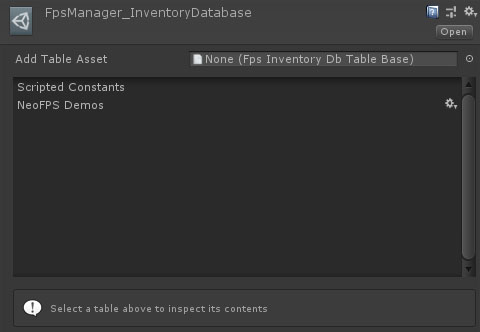
The inventory database is a system for managing the inventory keys used to identify each unique item. The database is made up of tables, which are used to gather inventory IDs together. The inventory system used to use GeneratedConstant based keys. The new database system has one fixed table that references the old FpsInventoryKey constants and uses them as keys. This allows you to use the constants to reference inventory item IDs directly in code - useful for items like the keyring, which is a unique, but constant item.
You can create an inventory database table for your project by right-clicking in the project browser and selecting Create/NeoFPS/Inventory/Database Table. This allows you to add your own keys without the risk of clashing with any changes to the NeoFPS demo inventory keys in future updates. Once you have created a table, add it to the database via the NeoFPS Hub: Managers/Inventory Database.
To assign an ID to an object, clicking the ID button will show the inventory database browser.

From here you can browse the different tables to select an ID. You can filter by name using the filter field at the top. You can also add new keys from the browser itself. In the NewEntry section, select the table you want to add to, input a name, and hit Add New Entry button. This will add the a new entry to the selected table, and apply its ID to the object you are editing.
Inventory Loadouts
Inventory loadouts are a simple list of inventory objects that should be added to a character's inventory.
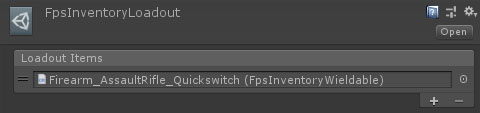
You can assign this to a game mode component, and it will apply the loadout on spawning a player character instead of using the character's starting items.