Weapons
Overview
NeoFPS currently supports three types of weapons: melee, thrown and modular firearms.
Weapon Types
Melee Weapons
Melee weapons are weapons such as clubs and swords that are held onto and swung at the enemy. For more information see Melee Weapons.
Thrown Weapons
Thrown weapons are items such as grenades and ninja stars that are stored in the character inventory and thrown by hand. For more information see Thrown Weapons.
Modular Firearms
Modular firearms are gun type weapons. They are assembled from a number of swappable modules that, together, model the behaviour of a firearm. For more information see Modular Firearms.
Wieldable Tools
Wieldable tools are items that are carried in the player character's hands and used with the primary or secondary fire buttons. They are assembled from a number of tool modules and actions. For more information see Wieldable Tools.
Explosions
The NeoFPS weapons can make use of a simple explosions system which deals damage and adds a repelling force to any objects in an explosion's blast radius. For more information see Explosions.
Demo Weapons
The following weapons are included in the samples in order to show off the different weapon features:
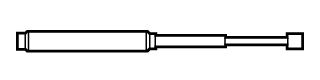
The baton is a simple demonstration of the melee weapons.
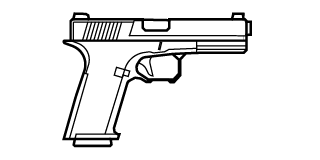
The pistol is a low caliber firearm with plenty of ammunition. It uses the basic features of the modular firearms.
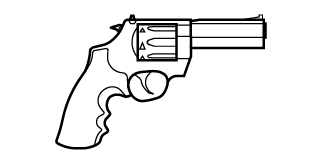
The revolver is a high caliber, heavy hitting firearm. The trigger pull is quite heavy so firing can have a delay.
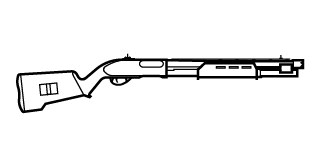
The shotgun is a pump action weapon with a conical spread. Shells are loaded into the weapon individually and the process can be aborted after the current round is inserted by pressing the fire button.
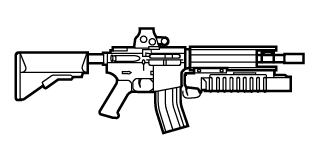
The assault rifle is a 5.56mm carbine with 3 fire modes: full auto, 3 round burst and semi-automatic.
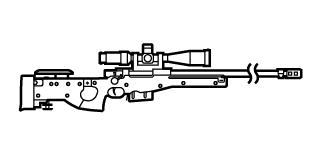
The sniper rifle is a heavy caliber bolt-action rifle with a long range scope.
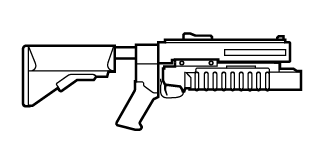
The grenade launcher is a single-shot break open launcher that fires 40mm high explosive grenades.
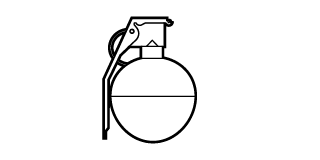
The fragmentation grenade is a thrown weapon. Pull the pin and wait 5 seconds for an explosion.
More demo weapons will be added in future updates.
Dual Wield Weapons
A dual wield weapon is a single prefab with 2 weapons as children. Each of the 2 weapons can be a modular firearm, a wieldable tool, a melee weapon or a thrown weapon. The root of the dual wield weapon has the inventory wieldable component, along with a dual wield input handler (either InputDualWield or InputSystemDualWield) and a CompoundCrosshairDriver. The latter tracks the accuracy of the 2 sub-weapons and uses those to control the spread of the combined crosshair.
When assembling a dual wield weapon, the 2 sub weapons should look very similar to a regular weapon. That means there is an object with the weapon behaviours and modules. As a child of that there is a weapon spring object to handle the procedural animation. As a child of that there is then the view model. Each of the dual wield weapons should have these. If you want to instead use a single view model then you should be looking at the firearm with secondary weapon mentioned below.
Dual wield weapons can be set up to act in one of 2 ways. The first is that one weapon is triggered by the primary fire button. The other is triggered by the secondary fire button. On PC the secondary fire and aim buttons are shared, so this means you can't aim down sights on a weapon set up this way. The other style of dual wield is for both weapon to be triggered simultaneously with the primary fire button, and then you will still be able to aim down sights.
Aiming with a dual wield weapon can restrict the valid aimer modules. For example, the head move aimer and camera constraints aimer will both cause problems as the 2 weapons clash. It is best to stick with the weapon move aimer, and set the zoom FoV multiplier to the same value on both weapons for predictable results.
A number of example dual wield weapons are provided in the folder: *NeoFPS\Samples\Shared\Prefabs\Weapons\SwappableInventory*
Firearms With Secondary Weapons
In a similar way to the dual wielding, you can also add a secondary weapon to a firearm. This secondary weapon can be a modular firearm, a wieldable tool, a melee weapon or a thrown weapon. Both of these weapons should share a view model, however this can add some quirks to the setup. An example would be that the firearm modules attach to the first firearm in their parent hierarchy. Therefore, it is best to place the secondary weapon behaviour and any modules on a child object of the root firearm, but alongside the weapon spring for the view model.
In order to make the second weapon a secondary fire mode for the firearm, you will need to use the correct input handler on the weapon's root (either InputFirearmWithSecondary or InputSystemFirearmWithSecondary). In the case of a secondary firearm, it is also a good idea to add a CompoundCrosshairDriver behaviour to the root object and move it above the ModularFirearm in the inspector. This will ensure that the HUD crosshair expands and shrinks based on both firearms' accuracy.
In the case of a secondary firearm, the ModularFirearm behaviour will see that it has no children and show the quick setup mode in the inspector. Assigning an animator controller to the firearm's animator controller property at the top of the quick setup will tell the firearm that it has an external view model, and the inspector will switch to the standard modules mode. A number of the modules use properties that expect to point at child objects (eg the shooter modules expect a muzzle tip transform to be in their child hierarchy). When you assign those properties an object/behaviour reference from outside their hierarchy they will show up as orange in the inspector as a warning. This is purely visual and is meant to aid in troubleshooting your setups.
Weapon-Camera Alignment
One of the most commonly asked support questions that people have is why their weapon is not aligned correctly to the camera.
The key thing to bear in mind with the NeoFPS weapons is that they will all be instantiated and stored under a single transform in the character hierarchy. For most characters this transform will be in the same position as the camera. This means that you should treat the root of the weapon hierarchy as the camera position.
The exception to this is when you have a full character body with arms that use IK to match the weapons. In this situation the item root that acts as parent to all the weapons should be attached to the upper chest bone (it can be raised to shoulder level or higher). If you do not do this then pitching the camera too far up or down will cause the weapon to swing away from the body and out of reach of the hands. For this situation it is usually best to treat the weapon root as the camera position for the initial setup and then offset the view-model to bring it into view at runtime and re-apply the offset once you re-enter edit mode.
In order to offset the view model to align it with the root of the character you need to move the view-model object itself. The root transform, pose transform (if it's not set to the root) and "WeaponSpring" transform will all have their position and rotation overwritten by the procedural animation systems. The view model usually sits under that "WeaponSpring" object.
Depending on how the weapon view-model animations are set up, this object might also have any offset you apply overwritten at runtime. If the root of the view-model has keyframes on its position or rotation then these will be applied as soon as the animation plays. Sometimes you can get around this simply by checking on "Root Motion" on the weapon Animator component. If the root object actually moves though, then it can be easier to add a new object in between the "Weapon Spring" and the view-model, and then offset that instead.
If your weapon is set up with an object in its view-model hierarchy that represents the camera position then there is a quick solution to aligning the weapon. On the weapon's main component inspector (MeleeWeapon, [ModularFirearm][ref2], [ThrownWeapon][ref3], [WieldableTool][ref4]) you will find a section called Origin Point with a property Match Transform. If you drag the camera object onto that field, then the view model will be realigned so that object is aligned with the weapon root. The value is not stored for later. It is used once to realign the objects and then forgotten.