Wieldable Tools
Overview
The wieldable tools feature is a new early access feature that allows you to create wieldable items to perform a range of actions that don't fit into the categories of firearm, melee or thrown weapon. Some examples are healing stim packs, shield boosters and grapple hooks.
Each wieldable tool has a primary and secondary fire that you assign actions and tool modules to through the inspector. Each of these actions and modules is a separate MonoBehaviour component that is added to the object, similarly to the modular firearm modules.
You can find a pair of example tool prefabs in the following folder: NeoFPS/Samples/Shared/Prefabs/Tools/
The flashlight tool can be toggled via the primary fire button or the flashlight button. The grapple tool requires that the character you use it with have a vector parameter on their motion graph that the tool can assign the grapple point to. The parkour demo motion graph is set up with this. Note that the demo tools use the quick-switch inventory type and have specific quick slot indices that might clash with existing demo weapons. You will need to remove those weapons from the inventory before adding these tools in order for them to work (in the demos these are the baton and pistol).
Note: The wieldable tools system does not currently come with any art assets to demo it, but art and animations work in the same way as for melee or thrown weapons. There is also no wizard currently set up to create wieldable tools through the NeoFPS Hub. Once enough feedback has been provided and the systems finalised, the wizard will be added.
Wieldables vs Quick-Fire
The original setup for a wieldable tool is as a "wieldable" item. That means it is equipped when selected, and then you have to hit the primary or secondary fire inputs to perform the tool's actions. You can achieve this with your tools by adding an FpsInventoryWieldable or FpsInventoryWieldableSwappable behaviour to the root of your tool prefab depending on your choice of inventory. These handle selection and deselection, and also define which quick-slot they apply to.
Alternatively, you can set up your tools as quick-use items. This means that when you select them, the tool will raise and then immediately perform its actions before lowering again. This can be used alongside another equipped weapon (optionally interrupting its use). To achieve this, you would add an FpsInventoryQuickUseItem or FpsInventoryQuickUseSwappableItem behaviour to the root of your prefab instead of the wieldable behaviours above.
Actions And The WieldableTool Component
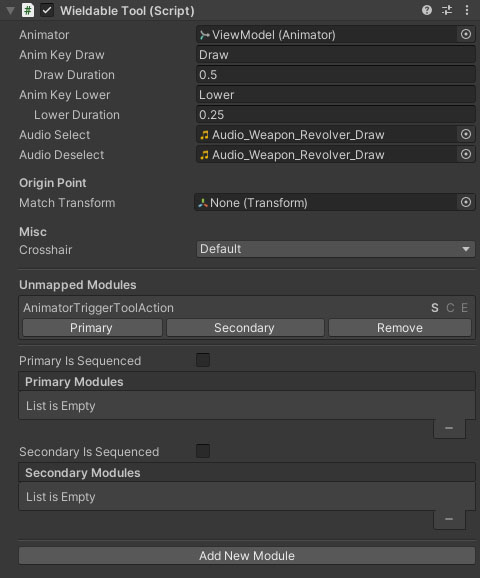
The WieldableTool component checks for new modules and actions on the object and displays them in the Unmapped Modules section. You can then choose if they should be assigned to the primary or secondary fire for the tool (or removed from the object).
Each module has three letters next to it: S, C, E. These represent when the actions fire: start, continuous and end. Start actions fire as soon as the relevant fire button is pressed. Continuous actions fire each fixed update frame as long as the fire button is held. End actions fire as soon as the fire button is released, or when the firing is interrupted. These end actions can often be set to only fire on "success", which is defined by the other actions. For example, the ChargeToolAction uses a continuous action to build up a charge. If the fire button is released before the charge reaches 100%, then the end actions are called with a success value of false. If the charge reaches 100%, then the primary/secondary fire is interrupted and the end actions are called with a success value of true. An example use for this would be recreating the shield boosters from Apex Legends. You would use a ChargeToolAction along with a ShieldBoosterToolAction set to apply the shield boost as an end action that requires success.
A number of modules or actions allow you to specify whether they fire on start or end (including success / fail), or continuously.
If a tool has no continuous actions then the end actions will fire immediately after the start actions.
The currently available wieldable tool modules are:
| Name | Description |
|---|---|
| AddInventoryItemToolAction | Adds an inventory item on start and/or end, or in increments as the relevant trigger is held. |
| AnimatorBoolToolAction | Sets a bool parameter on the tool's animator controller as long as the trigger is held. |
| AnimatorTriggerToolAction | Sets a trigger parameter on the tool's animator controller as a start and/or end action. |
| BlinkToolModule | Used to create an Arkane style blink ability. The tool checks for a valid blink target and sends it to a motion graph parameter on releasing the trigger. Used with a MoveToPointState motion graph state. |
| ChargeToolAction | Builds a charge as a continuous action, setting the end actions' success parameter to true if full charge is reached and false if not. Charging can alse be set up to play a looping sound with a pitch shift as charge builds, and play animations based on charge level. |
| ConsumeInventoryItemToolAction | Consumes an inventory item on start and/or end, or in increments as the relevant trigger is held. |
| FlashlightToolModule | A flashlight that can be toggled on or off. |
| GrappleToolModule | Casts a ray based on the wielder's aim, and uses it to set a motion graph parameter for the hit point. Releasing the trigger resets the motion graph parameter. When paired with the GrappleSwingState motion graph state, this allows for grappling and swinging around scenes. |
| HealToolAction | Can be set to heal a set amount instantly on start and/or end, or to heal in increments continuously as long as the trigger is held. |
| OrientGravityToolModule | Changes the player character's gravity so the the surface you are aiming at becomes the ground. |
| PlayAudioToolAction | Plays a specific sound on start and/or end. |
| ShieldBoosterToolAction | Restores shield steps on start and/or end. |
| UnityEventToolAction | Fires a unity event on start and/or end that you can use to call methods on other components. |
Wieldable Tool Pickups
You can create a pickup object for your wieldable tool using the Pickup Wizard in the NeoFPS Hub. This allows you to pick the weapon up in the scene, but also to drop it from your hands and pick it up again later. This is done in the same way as for a melee or thrown weapon pickup (you can use the melee baton pickup template as a starting point), by selecting the "Wieldable Item Drop" pickup type.
Wieldable Tool Animations
Wieldable tool animations are generally dictated by the modules that are attached, though the raise and lower animations are specified on the wieldable tool component and behave the same as for all other wieldables (firearms, melee and thrown weapons).
The [AnimatorTriggerToolAction][tools-anim] can be used to add animations at the start and/or end actions for each fire mode by specifying trigger parameters in the tool's animator controller.
You can also add keyframed sprinting animations using the AnimatedToolSprintHandler
Alongside keyframed animation, NeoFPS also allows you to add procedural animation to your weapons using Additive Transforms and Effects. These can be very simple, such as the weapon and head bob effects. They can also be more complicated, such as the procedural sprinting animation using the ProceduralToolSprintHandler. For larger scale movements, the wieldable tool behaviour has a pose system built in which allows for seamless transitions between poses and is used by the sprinting system along with the WieldableToolStanceManager.